
Apps, Polls & Your Store
An app is a block on your coin page: a price chart, a poll, a tip jar, your live stream, a gallery, a game. Only you, or a helper you add, can put apps on your page or take them off.
Apps on your coin page
Every app can be added on every plan, as many as you like, including apps from other developers. Most are free. Apps from other developers are reviewed before they are listed.
Add an app
- Open your coin manager and stay on the Page tab.
- Press the ⌃ beside Alert Holders, then Add Content, then Widget. A window titled Add a widget lists every app.
- Press an app to add it.
- Drag the app where you want it. Its gear opens its settings.
You should see the app on your page. Visitors see it at once.
To see every app in one list, switch one off or remove it, press Manage all apps at the foot of the Add a widget window. That Apps screen also shows your page storage.
The Apps directory
chaindaddy.io/_apps lists every app, each with its own page: what it does, who made it, what it may do on a page, and the coin pages that show it. Add to your token page on an app's page installs it on yours.
To show an app from your page in the directory, open the app's settings (its gear) and turn on List in Apps. It is listed once the app has passed review and your coin page is verified, under the tab for its category: Crypto, Games, Interactive, Media or Art.
Built-in apps
| App | What it does |
|---|---|
| Coin Header | Name, logo and verified links |
| Market | Price, recent moves, market cap, volume, liquidity and holders, showing only the figures the coin has |
| Candlestick Chart | Candles and volume from your coin's market, from 5 minutes to a day |
| Price History | A simple chart of your coin's price over the past week, or a major coin's |
| Live Trades | Buys and sells on your launch pool as they happen |
| Activity Feed | Your community alerts, media and poll activity in one stream |
| Community Polls | Polls holders vote on from the page |
| Content | Announcements, embedded media and custom HTML |
| Tip Jar | Tips in USDC or the chain's own coin, straight to your wallet, with no fee |
| Item showcase | Your store's items, each with a Buy button |
| Twitch Live, YouTube Live, Kick Live | Your stream, played on your page, marked LIVE while you broadcast |
| Featured Links | Your verified links, pinned |
| Gallery | Your art, video and music, with holders-only pieces |
How many apps fit
As many as you like, on every plan. Your plan sets your page storage: the files you upload and your apps' saved data. The apps themselves never count.
Apps that sell
Some apps from other developers sell their own items on your page (a pass, a skin), and some have a one-time install price. Adding one shows you every item, its price, the developer's share, Chain Daddy's fee and any install price before the app goes on your page. The page's owner accepts those terms, with the Seller Terms signed once by wallet signature. On any plan, Free included.
- You are the seller of record of the app's items on your page. Each sale pays your payout wallet, the developer's share and the fee, straight from the buyer's wallet. All sales are final.
- A store for the app's items. If your page has no store, accepting opens one that sells installed apps' items only.
- The developer's share is locked on your page: no manager or store key can change or remove the app's items.
- When the developer changes a price or a share, that item pauses on your page until you accept the new terms. A new item reaches your page when you accept again. A new name or picture shows at once.
- Accepting new terms. Open your page's manager and go to Apps. An app with new terms is listed at the top with a Review button. The review shows each change beside what you accepted before; press Accept new terms and the item sells again. The app stays installed. You are also told once a day, in your notifications and by email, when an app on your page has new terms.
- After a page changes owner. An acceptance belongs to the owner who made it. The new owner sees each paid app at the top of Apps with a Review button, and accepts its terms themselves to sell its items on the page.
- An install price is a one-time licence for your page, paid in USDC to the developer. It stays with your page if you remove the app and add it again.
- Removing the app stops its sales on your page. Buyers keep what they bought.
Chain Daddy's fee is 2.5% of each sale, or 0% if your coin launched in a Chain Daddy launchpad pool. Paid Apps has the full terms.
Open a store
Sell items for your coin on your own page, with no code: a pass, a skin, a badge. Buyers pay your wallet directly, and Chain Daddy never holds the money. A store needs any paid plan, from Pro. On Free, the Store screen offers the upgrade.
- Open your coin manager, press Community, then Store at the top.
- Press Sign the Seller Terms and approve the message in your wallet. Signing is free and moves nothing. It records that you are the seller and that all sales are final.
- Press Open your store. Opening it is free.
- Press New item. Fill in Item key (a short name your store uses for it, such as
vip.pass), Name, Image link and Price in USD. Set Status to Active and press Create item. - Add the Item showcase app to your page.
You should see your item on your page with its picture, price and a Buy button.
Chain Daddy keeps 2.5% of each sale, or nothing if your coin launched in a Chain Daddy pool. To give items away, see Community → Rewards. For payment links, prices in your own coin, holders-only items and selling from your own app, see Store and Rewards.
Community polls
Press the ⌃ beside Alert Holders, then New Poll. Polls are on every plan. People vote from your page in one tap, and results update live and appear in the Activity Feed. Voting is free and has no prizes.
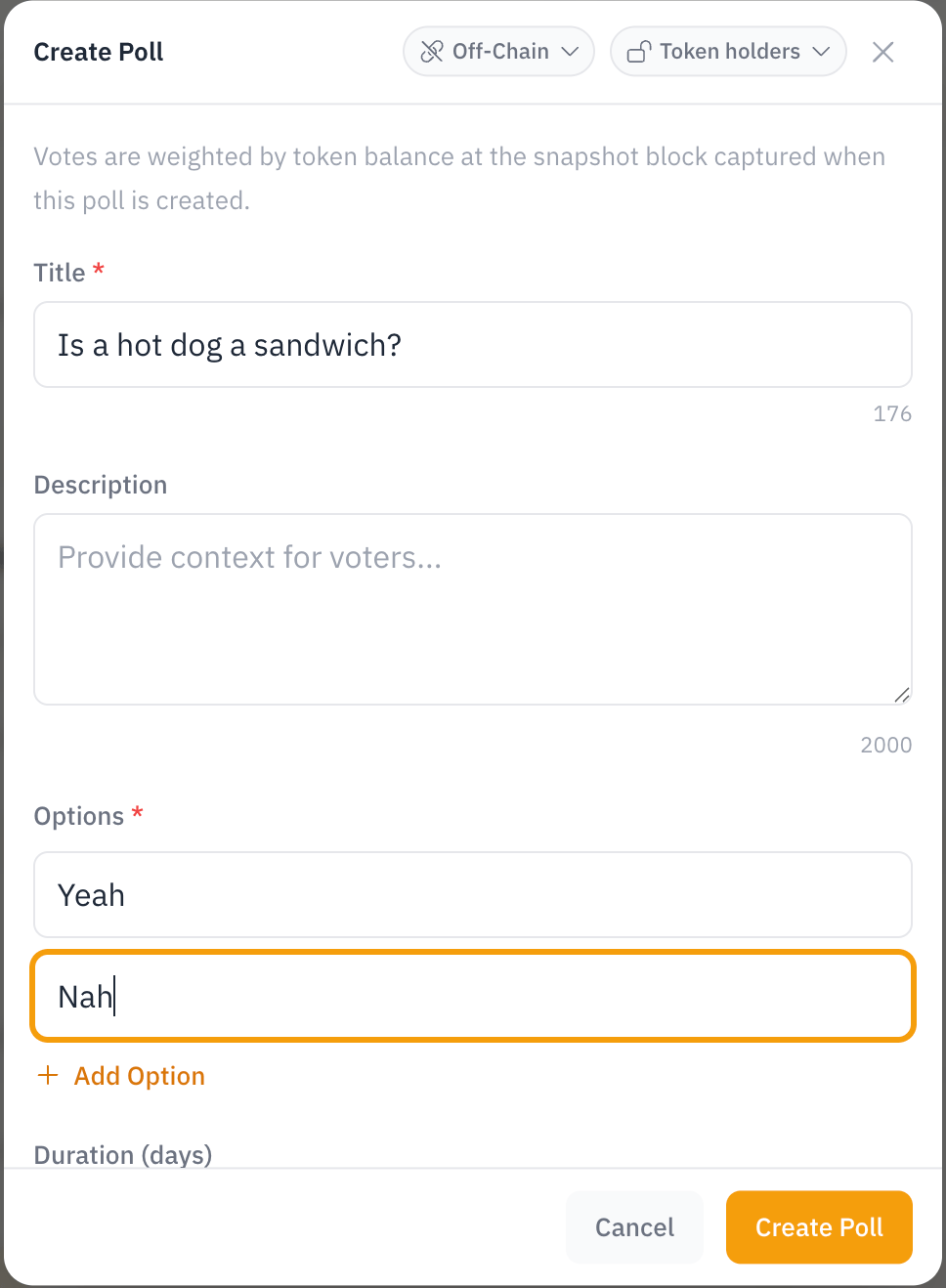
- Title and Description: the question and any context.
- Options: two or more choices. Add Option for more.
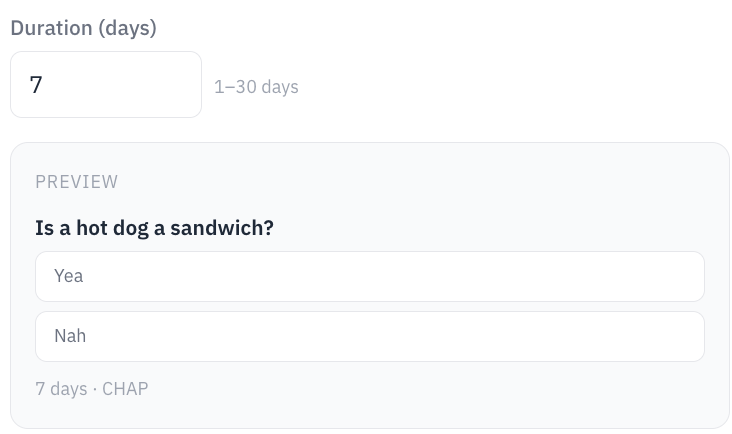
- Duration: how long voting stays open, 1 to 30 days.
- Who can vote (default Coin holders):
- Everyone signed in: anyone signed in to Chain Daddy, holder or not. One vote per wallet.
- Members: people who joined your community. One vote per wallet.
- Coin holders: anyone who held your coin when you created the poll.
- A holder group such as Top community: its holders when you created the poll, or, for a group of members, invited wallets or anyone signed in, whoever is in it when they vote. Holder groups need Pro.
- How votes count (coin holders and holding groups only): Weighted by holdings, by what each voter held when the poll was created, or One vote per wallet.
A person with several linked wallets votes once. Votes an AI app or agent casts for someone are counted apart and shown as such. Polls on a Solana coin are open to everyone signed in or to members.
The preview shows the poll as voters will see it. Press Create Poll and it is live.
In your Telegram group too. With a Telegram group connected to your coin, Post in Telegram is ticked: the bot posts the poll there as a Telegram poll when it opens and closes it when it ends. An answer counts in your results when the member has verified a wallet in that group (or connected Telegram for alerts) and that wallet can vote in the poll; Telegram also shows its own count of everyone who answered. An answer that cannot count gets a one-time message from the bot on how to verify, when the bot can message them.
In your Discord server too. With a Discord server connected to your coin, pick a channel under Post in Discord: the bot posts the poll there with a button per option when it opens, and shows the final shares when it ends. A tap counts in your results when the member has verified a wallet in that server (or connected Discord for alerts) and that wallet can vote in the poll. Only the member sees their answer.
Let visitors buy your coin
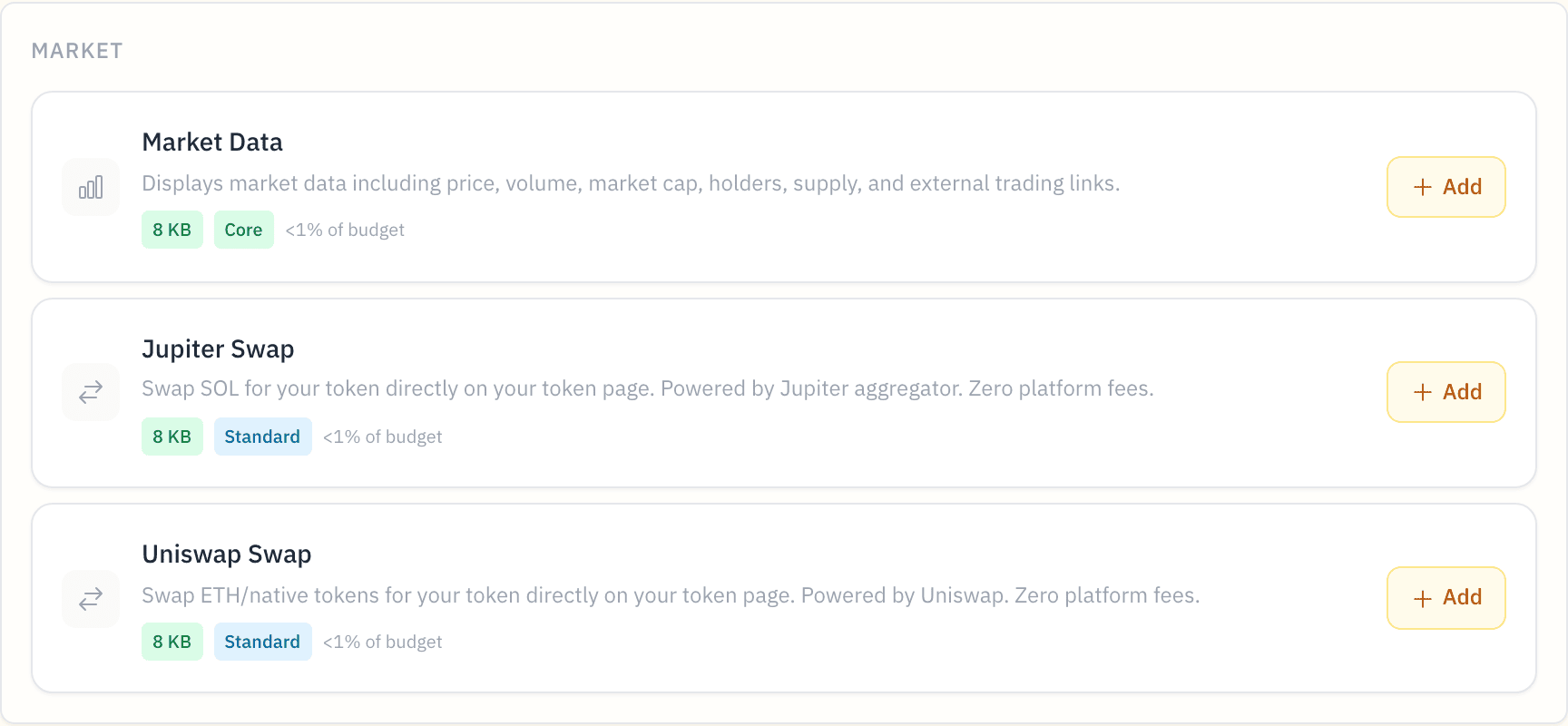
Once your coin has a tradable market, its page shows a Trade button. Visitors buy on the page:
- EVM chains (Ethereum, Base and chains like them): a built-in swap that finds a route across exchanges.
- Solana: a built-in swap through Jupiter.
- Short on gas? Visitors can bridge some to the right chain without leaving the flow.
There is nothing to set up.
Pay by card, Apple Pay or Google Pay
A visitor with an empty wallet can still buy. In the Trade sheet, under their balance, Pay with offers Apple Pay, Google Pay and Card, run by Transak inside the sheet itself, with no new window.
- Sign in, so there is a wallet to pay into.
- Pick an amount. The first one is what the trade needs.
- Press Apple Pay, Google Pay or Card and pay in the form that opens in the sheet.
- Wait for the coins. The sheet says Paid — coins are on their way. When your balance updates, press Swap.
What a visitor should know:
- It buys the coin the chain runs on, such as ETH or SOL, and sends it to their own wallet, not to Chain Daddy. They then trade it for your coin.
- Limits per payment: Apple Pay and Google Pay from $30 to $1,000, Card from $5 to $3,000. A button the amount doesn't fit is greyed out, and a line under it says why. On Ethereum the smallest amount is higher, to cover the network fee.
- US only. Elsewhere, the sheet says so in place of these buttons.
- The provider adds its own fee and shows the total before they confirm.
- Robinhood Chain: the coins arrive on Base. The sheet then offers Buy for your coin, with one signature.
- Some chains also show Coinbase, which opens Coinbase's own checkout.