
Community Gating
Make a private Telegram group or channel holders-only, or give your holders a role in your Discord server. You set the rules once. The Chain Daddy bot checks the balance of each member who verifies a wallet, lets in people who hold enough (or gives them the role), and removes them (or takes the role back) once they no longer do.
Pro and above
Community gating starts at Pro. Gated Telegram chats per coin: Pro 2, Pro+ 5, Developer 10, Partner 20. Discord: one server per coin, on the same plans. If your plan ends, your groups, servers and rules are kept, the bot stops letting new members in and giving new roles, and it still removes members, or their role, once they no longer hold enough. Everything works again when you renew.
How it works
Everything is on the Community tab of your coin manager, in the Coin Gating card.
- Decide who qualifies. Create a holder group: holders of an amount, your members, wallets you invite, or anyone signed in.
- Connect your group or server. Add the bot to your Telegram group or channel, or to your Discord server.
- Add a rule. Pick a holder group: the rule lets whoever is in it into your chat, or gives them a Discord role.
Holders prove their wallet once. The bot re-checks every member who did, every 6 hours.
A rule follows its group: change the group and the bot applies the change at its next check, alternates included. A rule saved before rules followed groups keeps the minimum it copied until you edit it and pick the group again. In a chat, a members group means your members on every chain you hold the coin on.
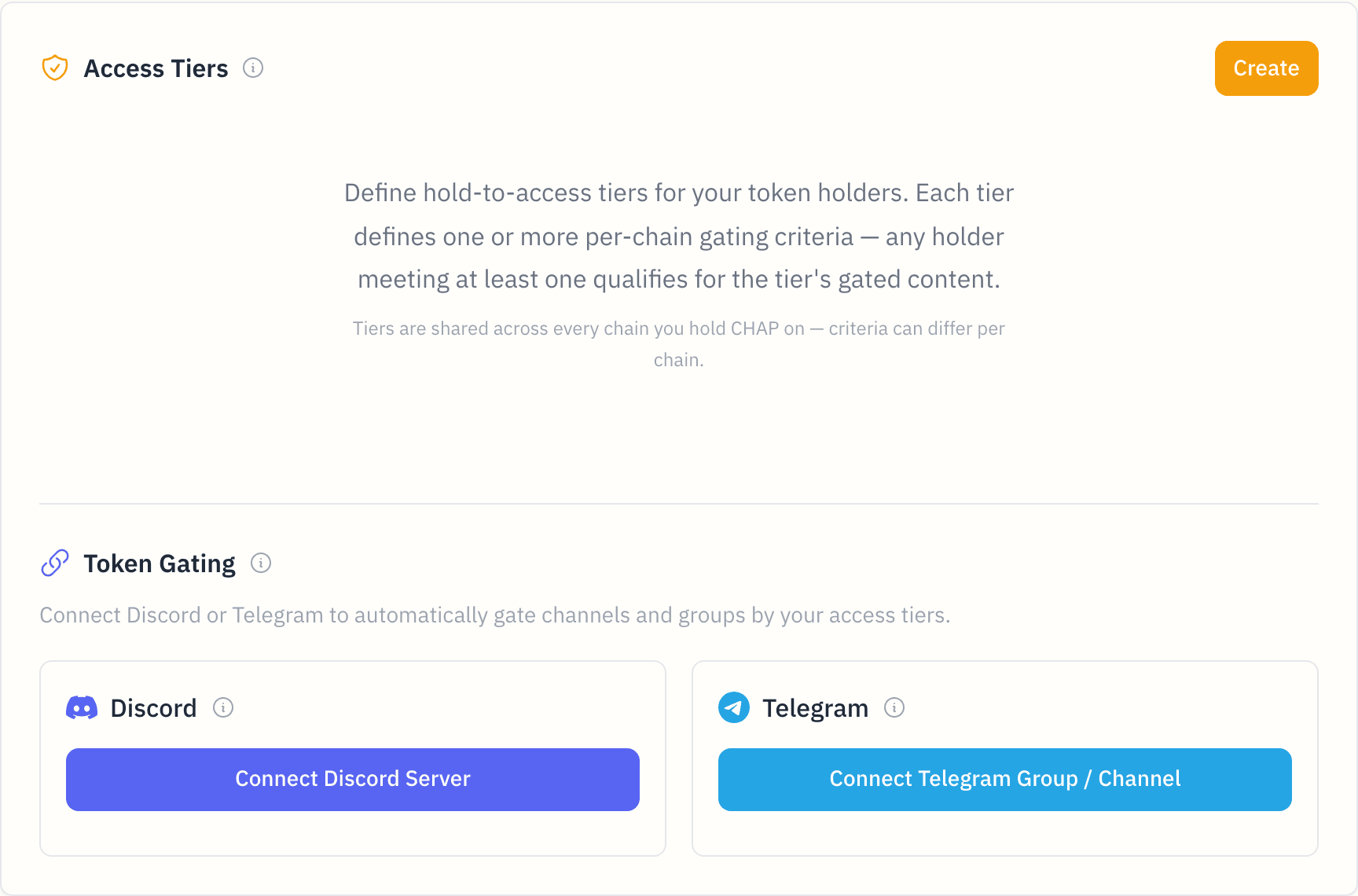
Holder groups
A holder group is who gets something, like Holders (everyone with 100 coins or more) or Top community. Create one from the Holder Groups card. You can use the same groups for gating, holder links, apps on your page, polls, airdrops and holder notifications. Groups per coin: Pro 5, Pro+ 10, Developer 20, Partner 40.
A group need not be a holding. Under Who's in it, pick:
- Holders of an amount: the criteria below.
- Members: everyone who joined your community, holder or not.
- Invited wallets: the EVM addresses and Solana keys you paste, up to 5,000. Only you and your managers see the list.
- Anyone signed in: any wallet signed in to Chain Daddy.
A group's kind is set when you create it.
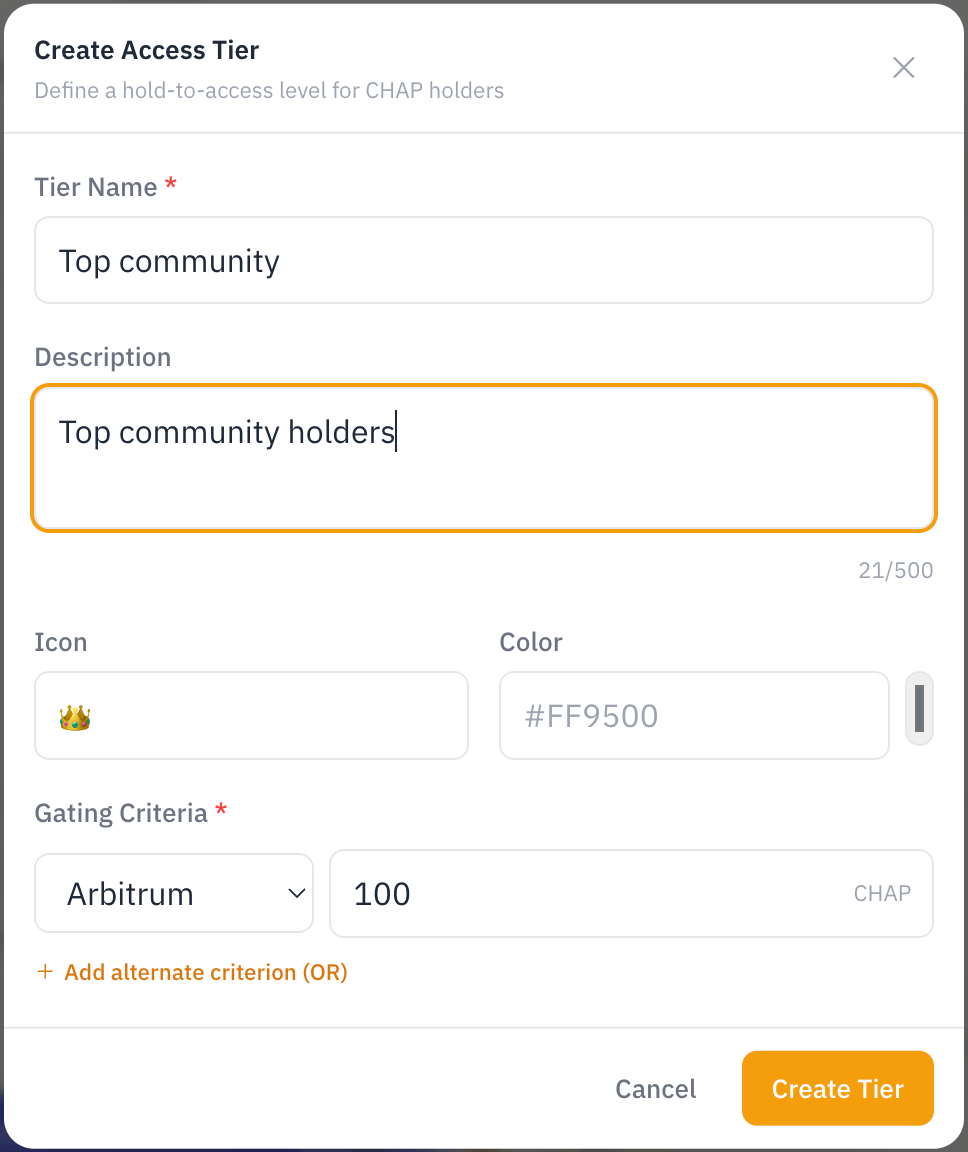
- Group Name and Description: what the group is called.
- Icon and Color: the badge that marks the group.
- Gating Criteria: the chain and minimum balance a holder needs, for example 100 CHAP on Arbitrum. Use Add alternate criterion (OR) to admit holders who meet any one of several, for example 100 on Arbitrum or 100 on Base.
Telegram setup
Access to a Telegram group is membership, so the bot works by approving join requests.
For a group, the quickest start is Add to your Telegram group on the Telegram card: pick the group and the bot connects it, so you can skip step 3. A channel, or a group the bot is already in, connects by chat ID in step 3.
Make the bot an admin. Add @ChainDaddyVerifyBot to your private group or channel as an Administrator with Add members and Ban users. It uses Ban users to remove members who no longer qualify. For a channel, add it from the channel's Administrators screen.
Turn on join requests. In the group or channel settings, under Members, turn on Approve new members.
Connect your chat. When you make the bot an admin, it posts the chat's Chat ID. On the Telegram card, click Connect it by chat ID and paste the Chat ID (or an
@username).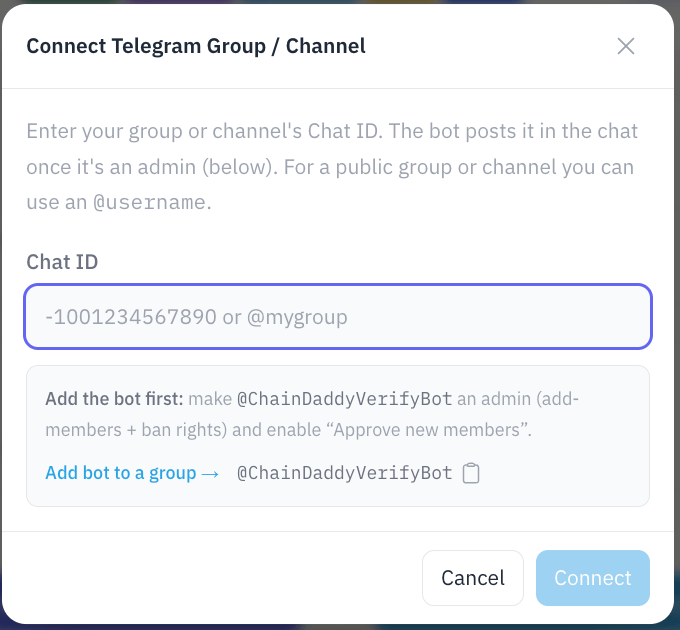
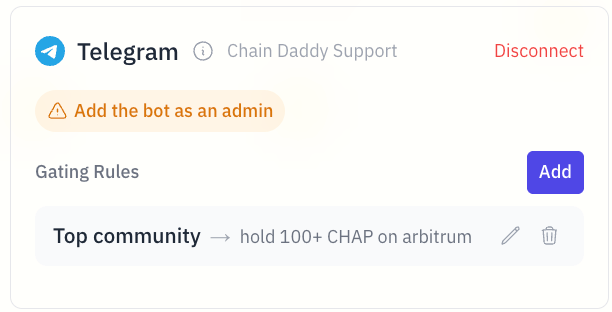
Add a rule. Click Add, give the rule a label (for example Holders or Whales) and pick the holder group that grants membership. A member gets in if they meet any enabled rule.
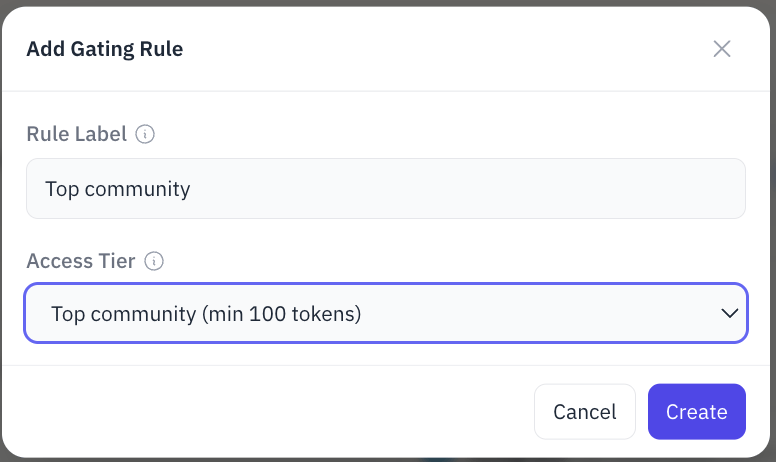
The rule appears on the card, and qualifying holders are let in automatically:
Discord setup
In Discord, access is a role. The bot gives the role to holders who hold enough, and you decide which channels the role opens. The six steps are on Discord: Holder roles.
What your members do
A member asks to join your Telegram group, or runs /verify in your Discord server. The bot sends a Verify wallet link. They connect a wallet and sign a message: no fee, nothing moves. If they hold enough, they are let in or given the role.
The bot checks again every 6 hours. A member who no longer holds enough is removed from the group, or loses the role, and can verify again once they do. A balance that can't be read never removes anyone. On Telegram, a member who never verified (an admin added them, or they were in the group before the bot) is asked to when the bot sees them, and removed 7 days later if they haven't: see Holder gating. On Discord, the bot checks only members who verified, and a role given by hand stays until you take it back. The holder's side, step by step: Telegram, Discord.